


Generic support and troubleshooting
Device Support
Generic Television
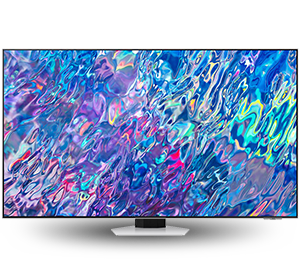
While we may not have your specific model listed, we have compiled a comprehensive set of frequently encountered issues and frequently asked questions that can assist you in resolving any difficulties and getting back on track.
If you require further assistance, don't hesitate to reach out to us via our contact page. contact page.
Frequently asked questions
How can I troubleshoot signal problems on my television?

To troubleshoot signal problems on your television:
- Using the TV remote or the buttons on the TV, make sure that the TV is on the correct input or source.
- Power cycle your television.
- Unplug the cable box or satellite box and wait for 10 seconds then plug it back in and wait for it to restart.
- Check to make sure all the devices are connected correctly. You can also try another cable if you have one.
- Bypass the cable box and connect the coax cable from the wall to the coax port on the back of the TV (should only be tightened by hand to avoid damage). Then run an auto-channel scan from the TV menu.
How to navigate your television channels
Channel Guide
Most TVs will have a channel guide that will display a list of current and upcoming programming for each channel you have access to. You can use this guide to find which programs you want to watch and at what time!
Favorites
Your TV will also likely come with a feature that lets you create a list of your favorite channels so that you can revisit them easily.
Blocking channels
This is a feature that lets you restrict access to certain channels that you might not want to watch, that may contain sensitive or inappropriate programming. This feature will likely be in the parental controls section of your TV’s settings.
How to use smart TV features
Voice assistants
Just like other smart devices such as smart speakers, smart TVs can come with voice assistants. This is a feature that allows you to control your device with your voice. To interact with your smart assistant, you will usually have to press or hold down a button on your remote control and speak your command.
Apps
Smart TVs will also come with a suite of available apps that you can use. These are usually streaming apps such as Netflix or Disney+ and will be accessible via your TVs menu.
OLED's and QLED's, what's the big difference?
To break it down simply, QLED and OLED refer to the different types of technology within the screen, so the main differences will feature around the picture quality:
QLED
Longevity: not susceptible to screen burn
Picture: will provide an impressive array of true to life colors
Brightness: able to achieve a higher level of brightness than possible on an OLED
Availability: comes in an array of sizes starting at 32'' and upwards
Refresh rate: Up to 200Hz
OLED
Longevity: susceptible to screen burn. Screen colors may fade over time
Picture: Will provide an impressive array of true to life colors, however the black contrast will reach a deeper tone than physically possible on a QLED screen
Brightness: able to achieve a standard brightness level
Availability: sizes are usually only available in 48'' and upwards. As you'd expect, this impacts the starting price point
Refresh rate: Up to 120Hz
I want to know more!
Click on the sections below to see more information on the topics.
- QLED: Quantum Light-Emitting Diode
OLED: Organic Light Emitting Diode
OLED technology works with Light Emitting Diodes. Diodes are pixels on the screen, and each of these Diodes is an individual independent LED light. Unlike a standard LCD television that works more as a single unit to provide a picture, each one of these Diodes is completely independent and able to adjust it's color and power. This allows for a vast range of color variants which can go one step darker in black sections of the screen by entirely switching off if necessary.
QLED televisions work with a new Quantum Dot technology alongside existing LCD (Liquid Crystal Display) capabilities. The 'Quantum Dots' refer to a new layer within the standard LCD television set up, which serve an improved range of color when viewing something. However, because the QLED works alongside LCD technology, it means that the pixels on the screen work more as a single unit, which all require a backlight (integrated within a layer of the television) in order to work. In turn, this means that black elements on the screen may not appear as dark as they would on an OLED, as the backlight is always on. - Screen burn is when a ghostly style image shows on the screen when the TV is in use.
The cause of screen burn lies within the life-span of the LED's. OLED panels are said to have a life-span of roughly 100,000 hours. However when the life-span begins to diminish, the vibrancy of the color can fade.
The main culprit that pushes this life span, is frequent re-occurring images and shapes on the screen. For example, if you continually watch sports matches, and the score board features in the same location of the screen each time. The re-occurring shape or image puts strain on a the specific set of LED's in that area of the screen, causing them to diminish quicker, in turn leaving a ghostly faded image on your screen of the shape. - Screen refresh rate, indicates the speed in which the video frames can be displayed in sequence on your screen, and will typically work hand in hand with a high speed processor technology. The lower the refresh rate, the less fluid the image within the video sequence will display. To add to this, with a lower grade of processor the overall quality of the image will be potentially grainy or even blurry.
Users that will likely be impacted by a lower refresh rate and processor will experience this when playing video games, watching live TV and live streamed videos.
Refresh rates will typically be one standard figure across certain ranges of television types, however these will change as technology improves over time. - The technology behind an OLED screen allows each individual pixel to light up independently, which means when an area of the screen requires black, instead of dimming the light, the pixel simply switches off entirely. This then produces a much deeper tone of darkness.
On the other hand, QLED screens use LCD (liquid crystal display) technology. The pixels within these screens cannot work as independently, working more as a singular unit and unable to switch off individual pixels. So when showing a dark area of the screen, the LCD will create a 'black' color to display. The contrast of this black will not be as dark for the single reason of the way that LCD screen is set up internally; the screen relies on a panel of light to create the colors you see on the screen made up by the liquid crystals. So even when showing a dark black color, the light panel will always be shining through, which is why you may see a 'glow' from a computer or TV screen that has a screen saver on while in a darkened room.
To give you an idea of the way a QLED display works with LCD technology, see the diagram below. The layer at the very back is the light panel that we have just discussed. - To put it simply, cost. The price to make an OLED TV panel, is greater than the overall cost of a typical smaller television. Like everything though this may change over time.
Tips for your remote control
- Replace the batteries.
- Remove any obstructions from the line of sight between the remote control and the television.
- Clean your remote, removing dirt and dust from the buttons and sensors. Make sure you use a soft cloth to do this.
- Reset your remote by removing the batteries and holding down any button for ten seconds, then replacing the batteries.
What is burn-in and how can I avoid getting it on my TV?
Burn-in is a visible mark that resides on the screen regardless of what the screen should be displaying. It can be caused by leaving a fixed image on the screen for extended periods of time, and is particularly noticeable on OLED TVs.
How can I prevent burn-in?
Firstly, do not unplug the power cord while the TV is still on, and avoid leaving your TV unplugged for long periods of time. Second, many TVs have a feature called 'auto refresher.' This is designed to move the entire image by a small amount of pixels occasionally. This feature helps to prevent burn-in as anything that is static on the screen will move around.
Avoid playing video games that display fixed images for prolonged periods of time.
Many video games feature a user interface that provides information. For example, a racing game might have a speedometer, or an action game might have a crosshair or health bar. If these features stay static on the screen for prolonged periods of time, your device could be affected by burn-in.
Avoid watching news channels that display fixed images for a long time.
Similar to the above, many news and weather channels have banners or logos on screen that stay in place for the whole program. Leaving these channels on screen often for a long time could cause burn-in.